


Featured work
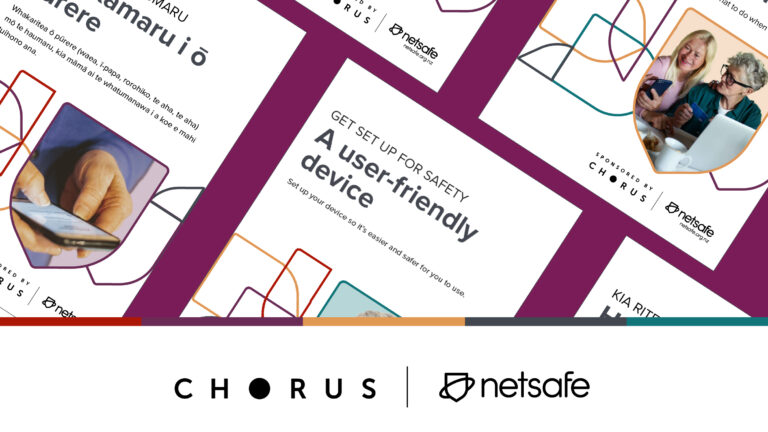
Top resources and tips for older people
Whether you are new to being online, or are more experienced, it can be tricky to navigate all the information and emerging technology safely. Find out how you can stay safe online with the resources and tips below. ‘Silver surfers’ are the fastest-growing group of online users and whether you’re newly exploring the online world,…

AI school policy and class charter
This year, with the support of Microsoft, our team are adding to our existing school and kura suite with new materials on the topic of generative AI.

Sextortion
Sextortion is a type of blackmail when someone threatens to share a nude image or sexually explicit video (or fake nude content) of you online – unless you pay them or provide more sexual content.

Netsafe conference
Netsafe and Australia’s eSafety Commissioner proudly co-hosted our trans-Tasman Online Safety Conference on 24 & 25 October 2023, at Te Pae in Christchurch, New Zealand. Catch the highlights in our image gallery and wrap-up video. 2023 Theme This year’s conference is titled “Breaking Glass Ceilings and Building Bridges: a trans-Tasman conference exploring the human experience in online…
Top Tips

Top resources and tips for older people
Whether you are new to being online, or are more experienced, it can be tricky to navigate all the information and emerging technology safely. Find out how you can stay safe online with the resources and tips below. ‘Silver surfers’ are the fastest-growing group of online users and whether you’re newly exploring the online world,…

Romance scams
On Valentine’s Day 2024, Netsafe launch a new resource for New Zealanders: “Understand Romance Scams” – a practical guide for safeguarding whanau – showcasing common tactics used in romance scams and providing advice for families who are worried about loved ones.

Sextortion Scams
Webcam blackmail has evolved into modern sextortion scams – a type of blackmail when someone threatens to share a nude image or sexually explicit video of you online – unless you pay them or provide more sexual content.
Advice for parents

Snapchat Guide
A guide to Snapchat. Find out the features of Snapchat, what you can do in it and the safety tools available.

Te Reo Māori online safety resources
Te Wiki o te Reo Māori (11 to 17 September 2023) this year challenges individuals and groups to set and achieve reo Māori goals from greeting everyone in te reo Māori to speaking solely in te reo Māori. Below is a selection of the support materials we have previously translated for our staff, whānau, communities. DOWNLOAD OUR…
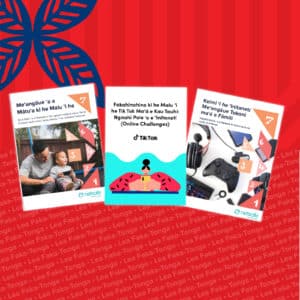
Tongan online safety resources
Lea Faka-Tonga – Tonga Language week (3 September – 9 September). This week is about encouraging use of the language, celebrating and promoting it. So we thought it could be helpful to pull together all of our previously translated materials into one, easy-to-find place. Netsafe can support you if you feel someone has breached this…
Online scams

Latest Scams
Netsafe has compiled this information from the Domain Name Commission’s latest scams page and from our scam information collected from our helpline data. This includes a list of companies, agencies, and organisations that have listed the latest scams using their names and/or brands. Netsafe greatly appreciates scam reports as they help contribute towards the collection…

Plain language romance scams
Netsafe and Spectrum Care have written this plain language romance scams guide. It offers advice for people with an intellectual disability, and those who support them. You can read our other plain language guides here. Romance scams: plain language guide Finding friends online can be fun. Sometimes, that friendship can turn to love. Sadly, some people…

Facebook Trading Scams
Facebook helps you keep up with family and friends and share what’s going on. It’s also home to popular local ‘buy and sell’ groups, and Facebook pages for businesses. Although a lot of these pages and sellers are genuine, there are some people who use marketplace and trading scams to target people on Facebook. We’ve…